Complete the Setup Wizard
Written By Mark Hardwick
Last updated About 2 years ago
The Setup Wizard is a three-step device registration process. Every time you set up a new terminal, the Setup Wizard will prompt you to complete three steps to sync the new terminal with the associated device set up in the BackOffice.
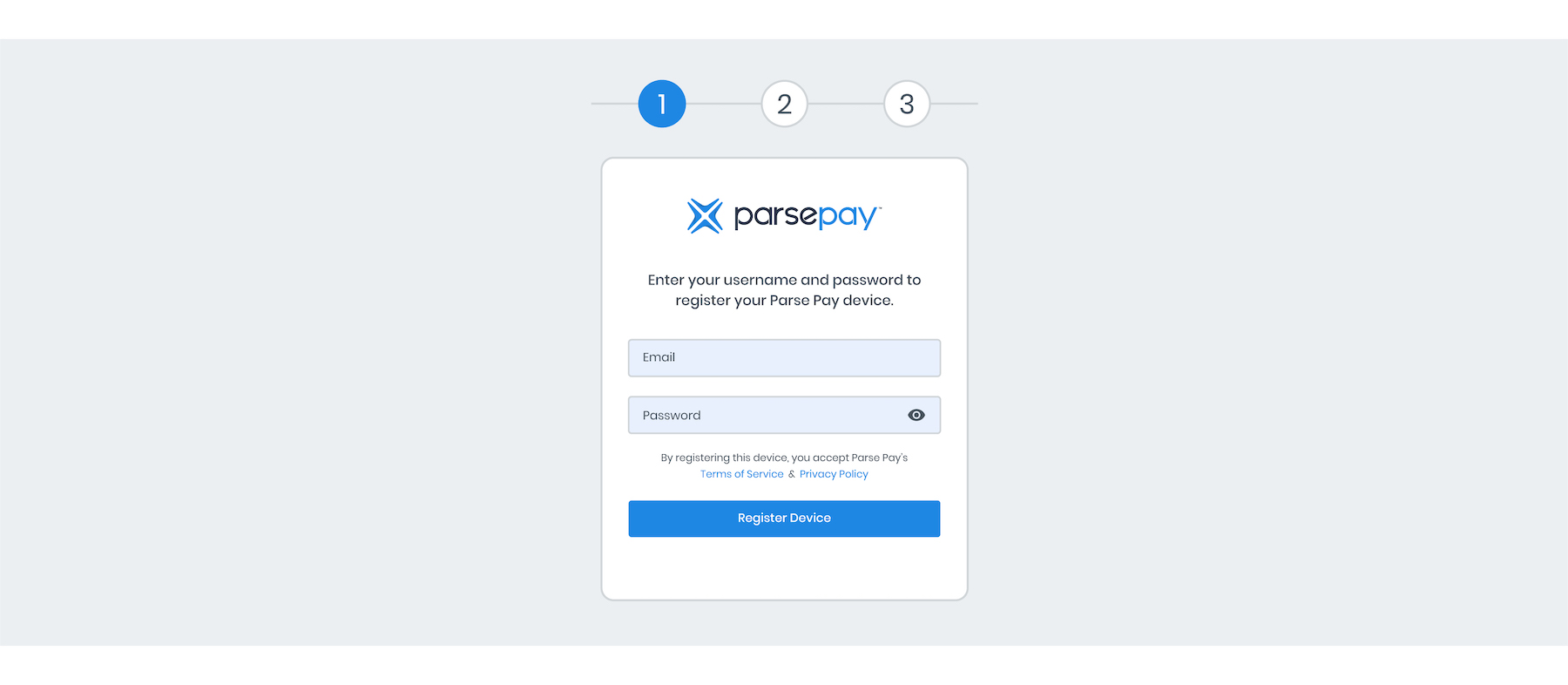
Step 1: Register Your Device
Upon powering up the device and connecting to the Internet, you are presented with the login screen to begin the three-step process to register your new device. Enter your account's email address and password, then tap the Register Device button.
Step 2: Specify the Location.
Find and select the location for this device from the drop-down menu. Once the location is selected, tap the Select Location button to proceed to the next step. If you don’t see your location from the drop-down menu, tap the Create a New Location link and enter the location information.

Step 3: Select (or Create) a Device Name
To complete the registration process, create a Device Name for this terminal (e.g., Till 1) and assign it a Device Letter (A-Z) from the drop-down menu.
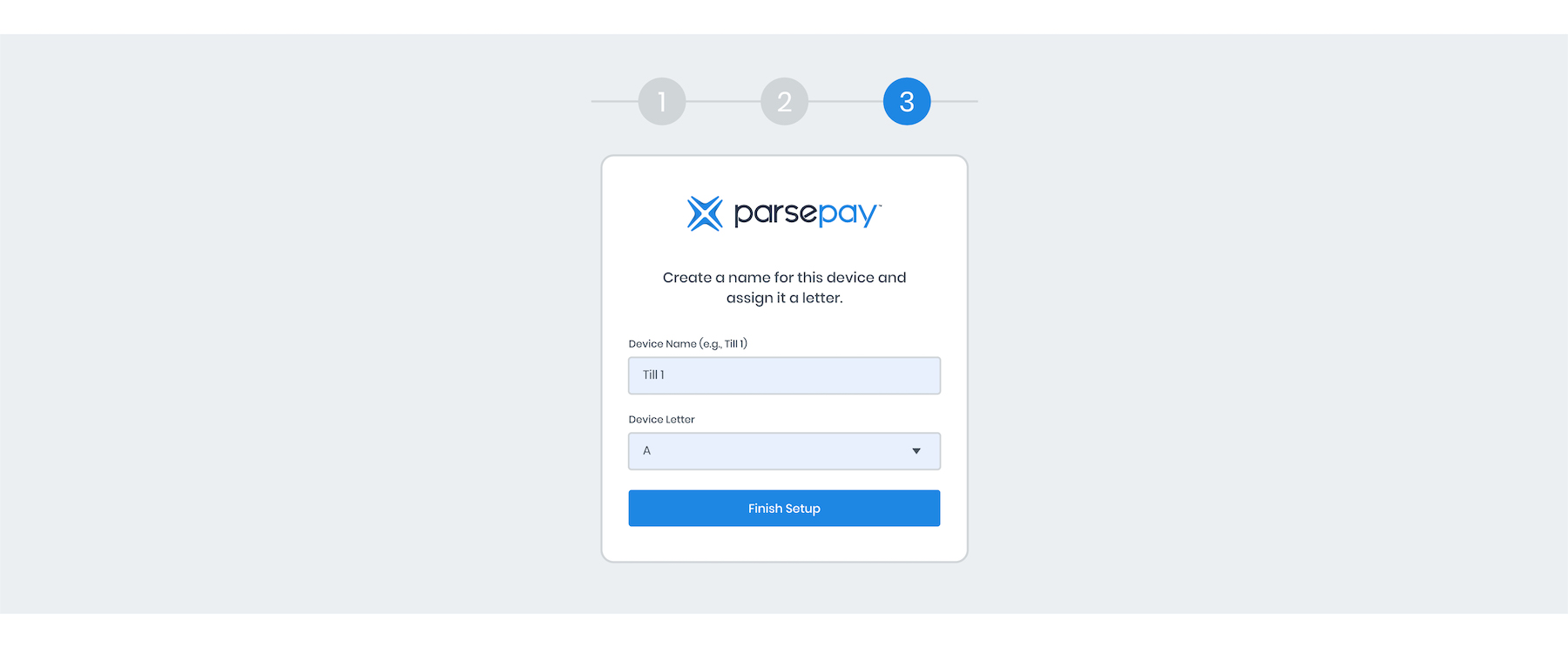
Tap the Finish Setup button. Congratulations, you’ve now completed the hardware setup and device registration process.
Was this helpful?